
Grant a Badge to a Member
Typically, Members earn Badges by spending Metrics to earn the Reward to which the Badge has been assigned, and by meeting any conditions defined for a Badge level. However, from the Member Details screen, you can manually grant a Badge to a Member.
The Badge must have a status of Published before you can manually grant it to a Member. See Publish a Badge for more information.
Note: You can also grant a Badge to a Member from the Badge Details screen or from the Member Profile screen.
To grant a Badge from the Member Details screen:
-
Select Members from the top navigation bar, then select Members > Members from the side navigation menu. The Members screen is displayed.
-
On the Members screen, search for and select the desired Member (see Search for a Member for more information). The Member Details screen is displayed with the Metrics tab selected by default.
-
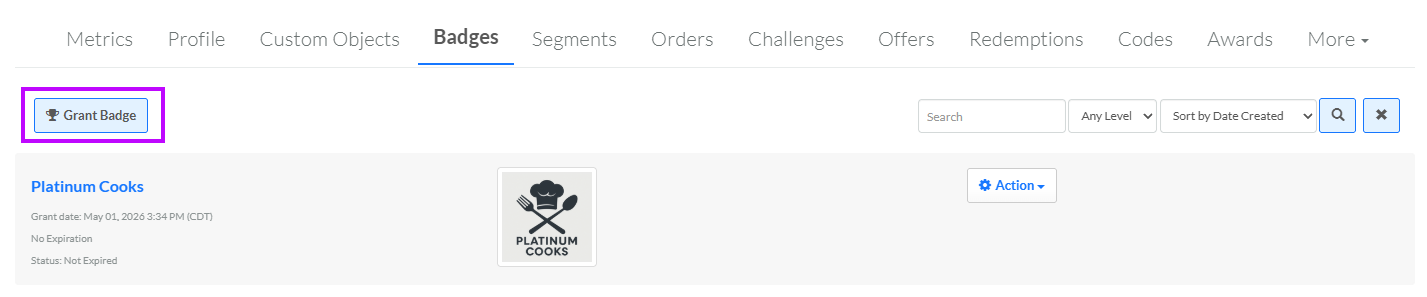
Select the Badges tab.
-
Click Grant Badge. The Grant Badge pop-up window is displayed.
-
From the Badge drop-down menu, search for and select the desired Badge.
-
For Status type Badges, the Level drop-down menu is displayed. From this drop-down menu, select the desired Badge level to grant to this Member.
-
For Collector type Badges, the Badge Count field is displayed. Enter the number of Badges to grant to this Member.
-
Click Save.
